Utils Events
Assign Variable

- Choose a Variable from the Variable List
-
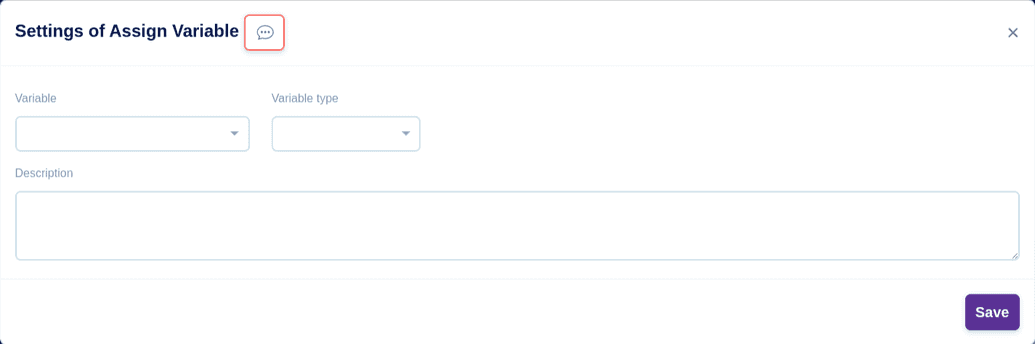
- Choose any of these Variable type Variable/Element/Value
- For Variable, key in the Variable Value
- In the description box, you can give a short description for your reference
- Click the Save button to save this event
- For Element, Choose from any of these selector - CSS Selector/X Path/Id and key in the corresponding Path/Id
- In the description box, you can give a short description for your reference
- Click the Save button to save this event
- For Value, choose from any of these data types String/Number/Data/Boolean and key in the corresponding Value accordingly
- In the description box, you can give a short description for your reference
- Click the Save button to save this event

Date Add/Sub

- Choose the Source Variable from the list
-
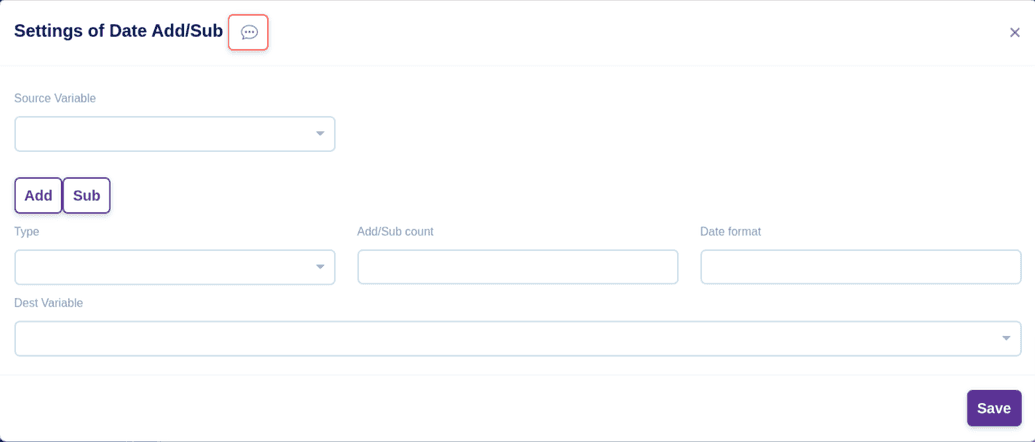
- Choose either to Add or Subtract the date
- Choose from any of these types Day(s)/Business Day(s)/Month(s)/Year(s)/Hour(s)/Minute(s)
- Key in the Add/Sub Count and choose the Data Format
- Choose a Variable from the Variable List
- Click the Save button to save this event

Logs

- Choose the Log type either Debug/Error
-
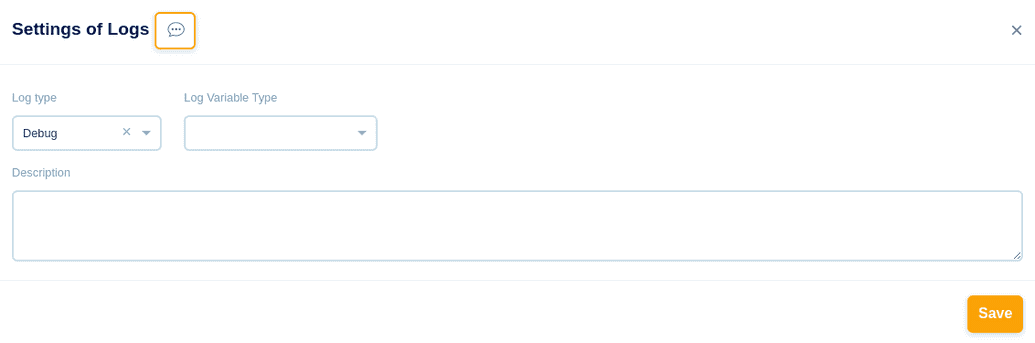
- Choose the Log Variable type either Variable/Value
- For Variable, key in Variable Name
- For Value, choose from any of these Data type String/Number/Keys and key in the corresponding Value accordingly
- In the description box, you can give a short description for your reference
- Click the Save button to save this event

Split String

- Choose a Variable from the Variable List
-
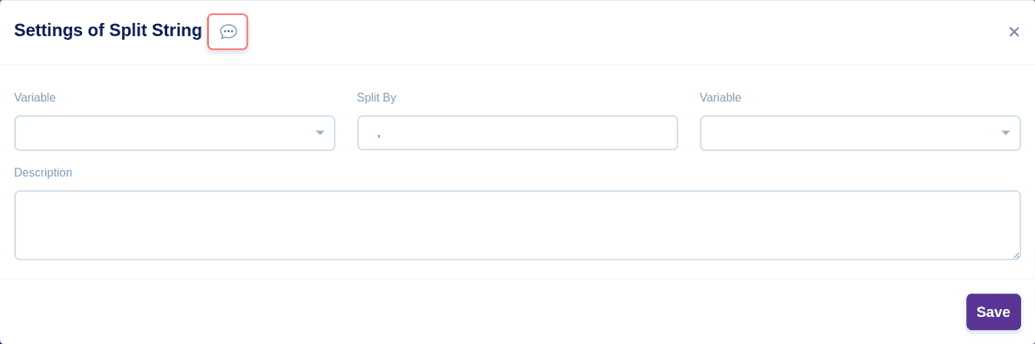
- In the Split By section, key in the Split By value
- Choose a Variable again from the Variable List which has to be split
- In the description box, you can give a short description for your reference
- Click the Save button to save this event

Join Array

- Choose a Variable from the Variable List
-
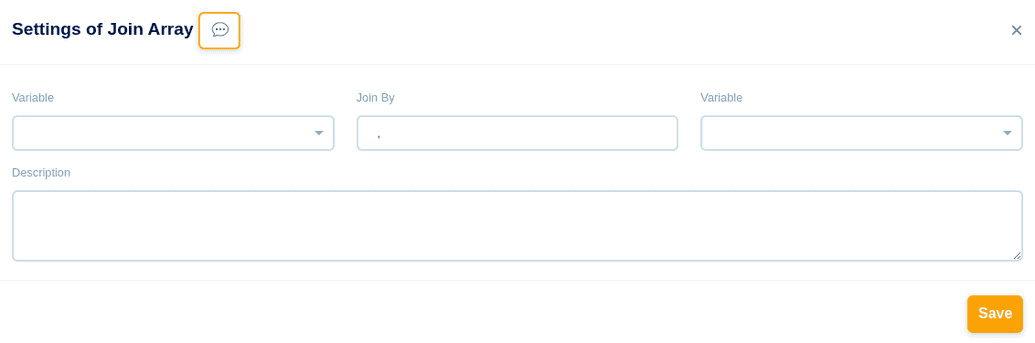
- In the Join By section, key in the Join By value
- Choose a Variable again from the Variable List which has to be joined
- In the description box, you can give a short description for your reference
- Click the Save button to save this event

Replace String

- Choose a Variable from the Variable List
-
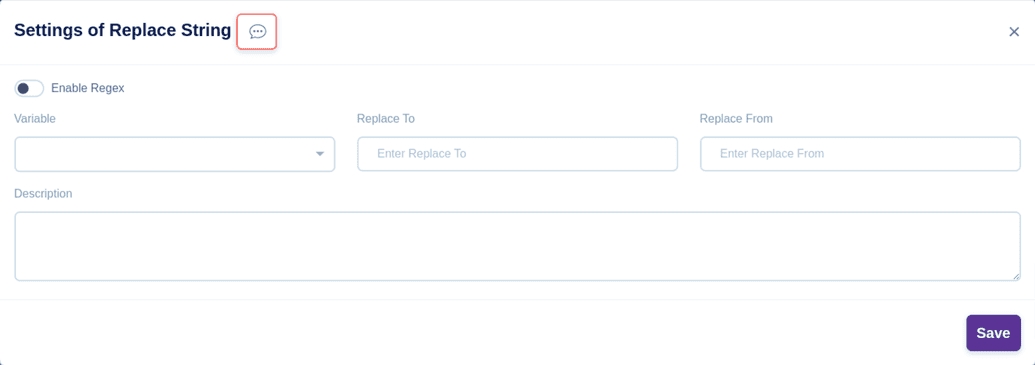
- In the Replace To section, key in the Replace To value
- In the Replace From section, key in the Replace From value
- In the description box, you can give a short description for your reference
- Click the Save button to save this event

Sort Data

- In the Data From section, choose the file, Data which has to be sorted
-
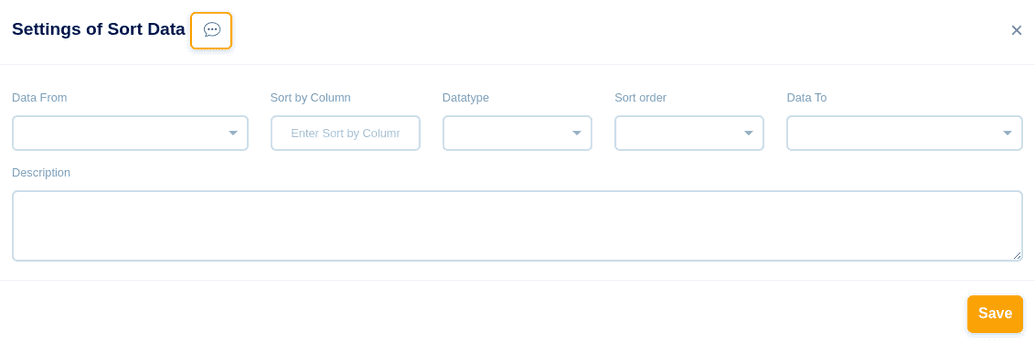
- In the Sort By Column section, choose the Column which has to be sorted based on the fields
- Choose any of these Data types Number/Date/String
- Choose any of these Sort Order Ascending/Descending
- In the Data To section, choose the file in which the Sorted Data has to be moved
- In the description box, you can give a short description for your reference
- Click the Save button to save this event
