Control Structure Events
If Else - Checks for the condition If, if not directs to conditon Else

- You can either choose the whole condition as And or Or
-
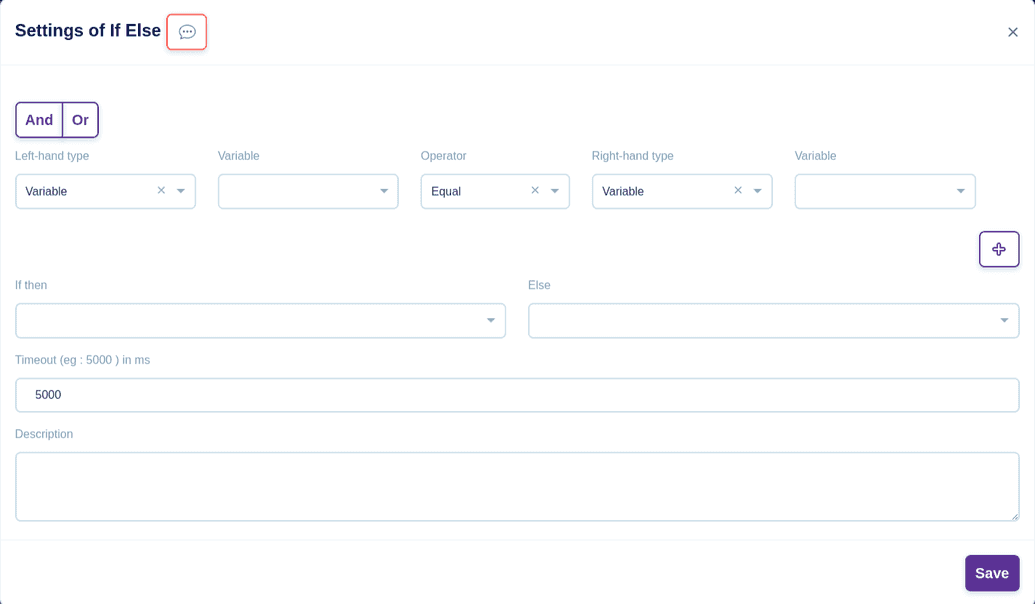
- In Left-hand type, choose either Variable/Element
- For Variable, assign a Value
- For Element, Choose from any of these selector - CSS Selector/X Path/Id and key in the corresponding Path/Id
- In Operator, choose any of the following conditions: Equal/Not Equal/Greater Than/Lesser Than/Greater Than or Equal To/Lesser Than or Equal To/In/Not In/Contains/Starts With/Ends With/Doesn't Contain/Doesn't Start With/Doesn't End With/Between/Not Between/Is Null/Is Not Null/Is Empty/Is Not Empty
- In Right-hand type, choose either Variable/Element/Value
- For Variable, assign a Value
- For Element, Choose from any of these selector - CSS Selector/X Path/Id and key in the corresponding Path/Id
- For Value, choose from any of the following data type: String/Number/Masked/Date/Boolean/Array/Table and key in the corresponding Data Value
- Key in the If Then condition
- Key in the Else condition
- In the Timeout section, specify a time in milliseconds. If the condition is not performed within the time specified, bot will be stopped
- In the description box, you can give a short description for your reference
- Click the Save button to save this event

Switch - Checks for the condition between Cases

- In Left-hand type, choose either Variable/Element
-
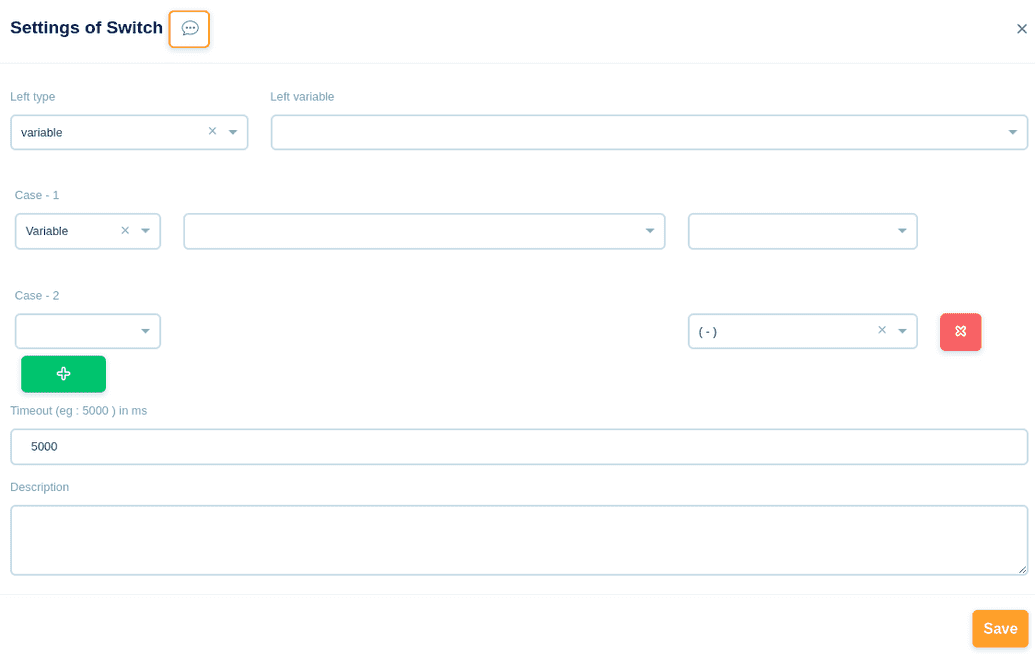
- For Variable, assign a Value
- For Element, Choose from any of these selector - CSS Selector/X Path/Id and key in the corresponding Path/Id
- Condition for Cases Variable/Value
- For Variable, assign a Value, then choose any of the corresponding condition accordingly
- For Value, choose either String/Number, then choose any of the corresponding conditions accordingly
- In the Timeout section, specify a time in milliseconds. If the switch condition is not performed within the time specified, bot will be stopped
- In the description box, you can give a short description for your reference
- Click the Save button to save this event

For Each - Checks for the condition of Each

- Choose from any of these loops through condition Variable/Number/Children
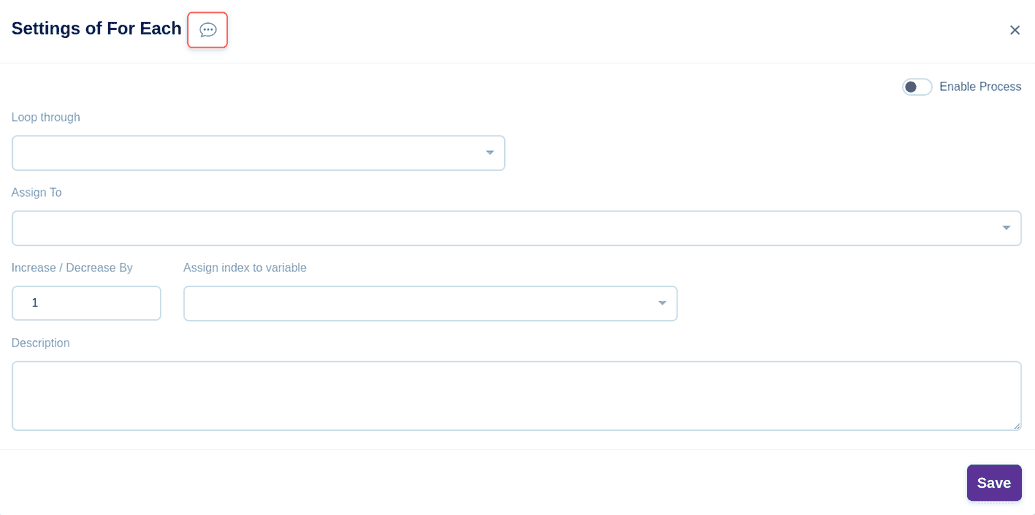
- For Variable, key in From Variable and specify Assign To
- Key in Increase By/Decrease By values and specify Assign Index To Variable
- In the description box, you can give a short description for your reference
- Click the Save button to save this event
- For Number, specify Assign To
- Key in Increase By/Decrease By values and specify Assign Index To Variable
- In the description box, you can give a short description for your reference
- Click the Save button to save this event
- For Children, specify Assign To
- Key in Increase By/Decrease By values
- Choose from any of these selector - CSS Selector/X Path/Id and key in the corresponding Path/Id
- Specify Assign Index To Variable
- In the description box, you can give a short description for your reference
- Click the Save button to save this event
- If Enable Process button is enabled, the condition For Each will be split into branches for quicker execution

Break - Breaks the loop through if a condition is satisfied
-
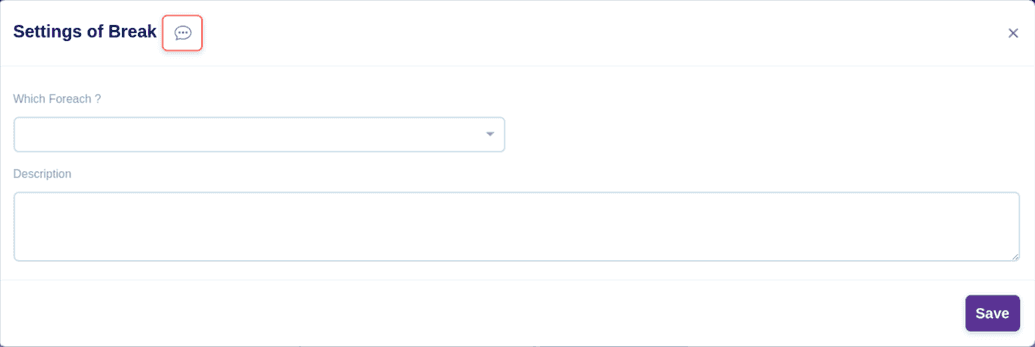
- Break the for-each loop using "Break Event"
- In the description box, you can give a short description for your reference
- Click the Save button to save this event
