Desktop Action Events
Mouse Move - Gets a position by Moving Mouse

- Move your mouse to the desired location and Click Get Position button
-
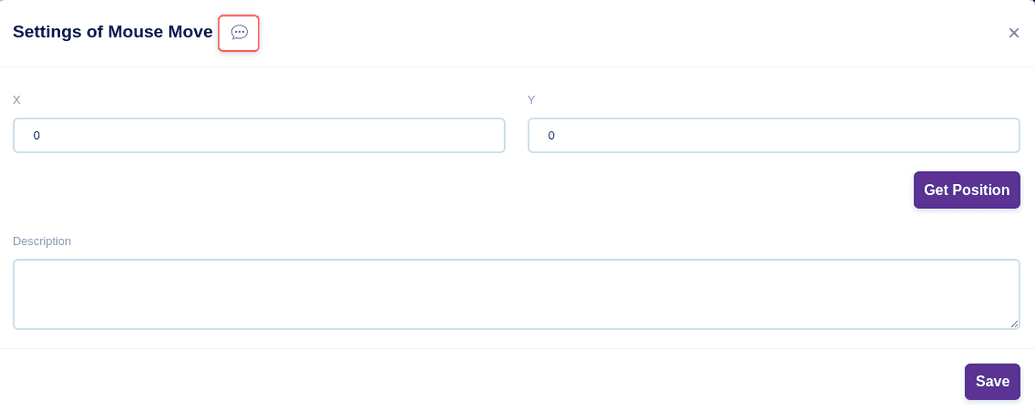
- Corresponding X and Y co-ordinates values will be fetched
- In the description box, you can give a short description for your reference
- Click the Save button to save this event

Mouse Click - Performs a Click

- Choose the button type either Left/Middle/Right
-
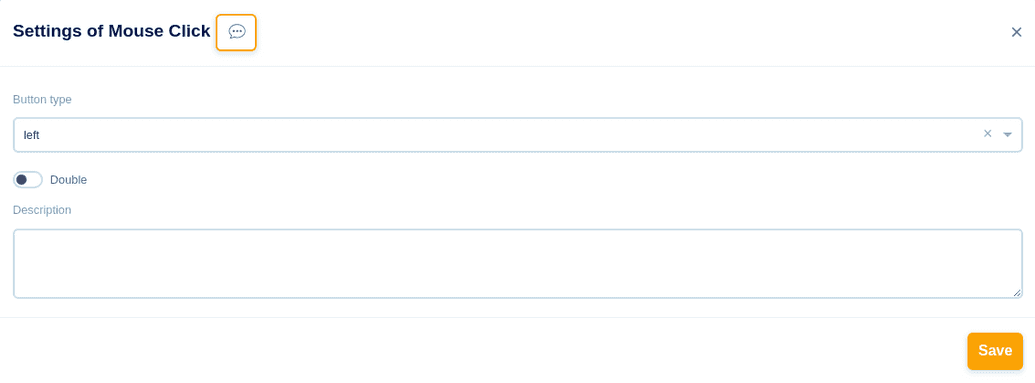
- If button type Left is chosen, the usual (left) click on the mouse will be performed
- If button type Middle is chosen, a Middle click on the mouse will be performed
- If button type Right is chosen, Right click on the mouse will be performed
- If the Double button is enabled, then the chosen Mouse Click will be performed twice (double)
- In the description box, you can give a short description for your reference
- Click the Save button to save this event

Type - Types within the Desktop

- Choose the Variable type to be either Variable/Value
-
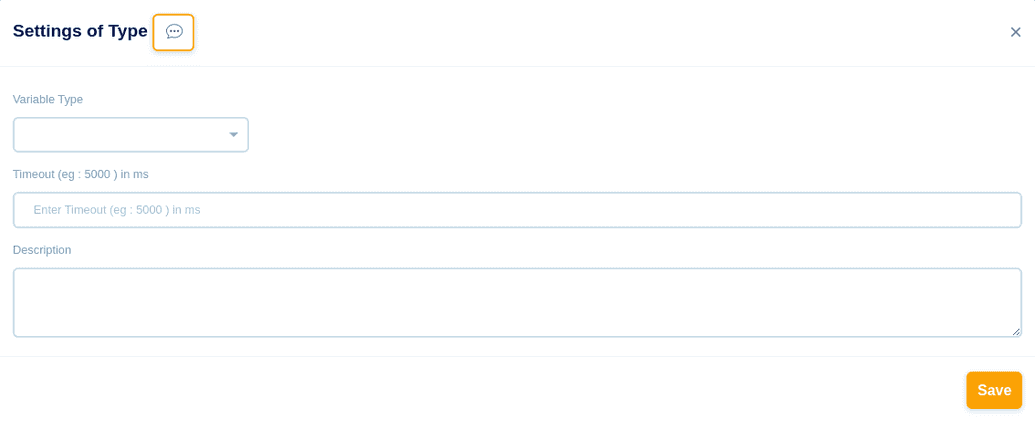
- For Variable, key in the Variable Name
- For Value, Choose the Data type, either String/Number/Keys, key in the corresponding Value accordingly
- In the Timeout section, specify a time in milliseconds. If the Set Select Box event is not performed within the time specified, bot will be stopped
- In the description box, you can give a short description for your reference
- Click the Save button to save this event

Desktop Screenshot - Takes a Screenshot within the Desktop

Choose File type either Internal/External
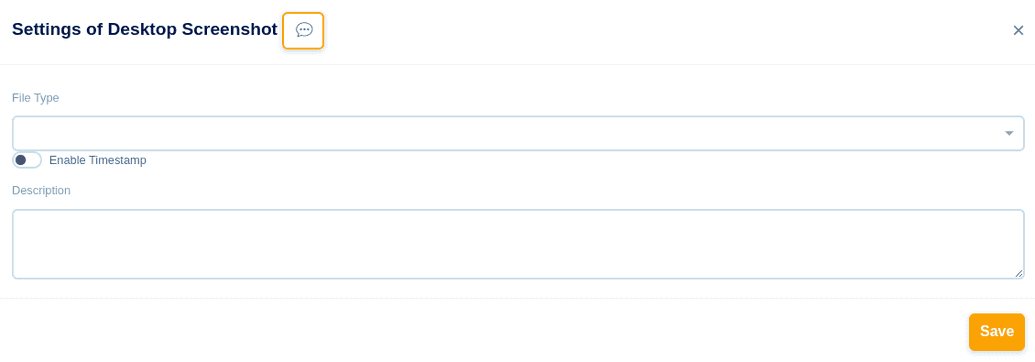
For Internal, Choose Upload File from your local system
If the Time Stamp button is enabled, the Screenshot will be saved with the corresponding Date and Time
In the description box, you can give a short description for your reference
Click the Save button to save this event
For External, Choose Method either - SFTP/FTP and mention the IP Address & Port number of the external system from where you are going to access the file
Mention the Remote Path of the file & File Name
Choose Authentication Type from any of these - No Authentication/Username and Password/Username and Key
For Username and Password, key in the Username and Password
For Username and Key, key in the Username and Password and Private Key
In the description box, you can give a short description for your reference
Click the Save button to save this event
Capture Region - Captures a region within the Desktop


Move your mouse to the desired location to Capture and Click Get Position button
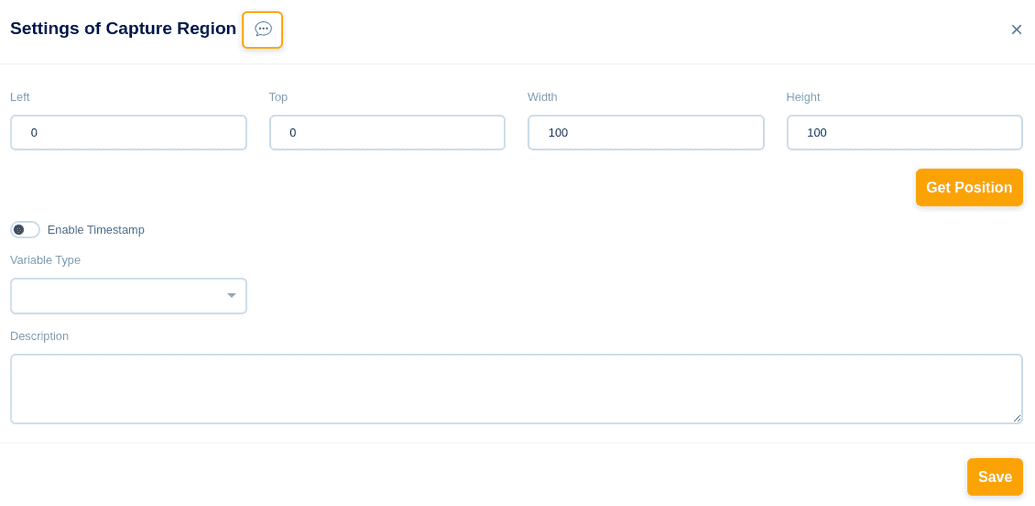
Corresponding Left/Top/Width/Height co-ordinates values will be fetched
If the Time Stamp button is enabled, the Captured Region will be saved with the corresponding Date and Time
Choose the Variable type to be either Variable/Value
For Variable, key in the Variable Name
For Value, Choose the Data type, either String/Number/Keys, key in the corresponding Value accordingly
In the description box, you can give a short description for your reference
Click the Save button to save this event
Copy - Copies the data


Copies the data from a desired location as mentioned in Copy From
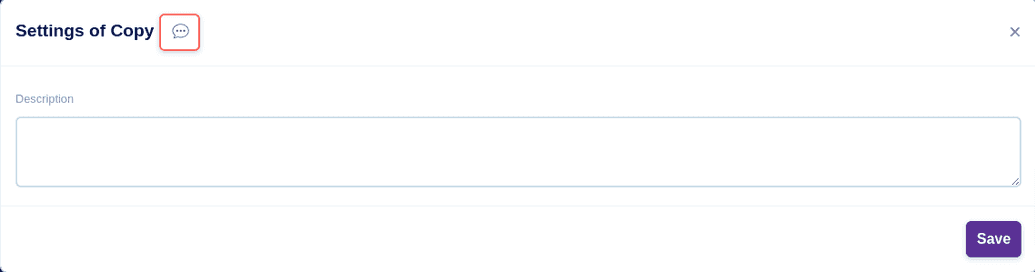
In the description box, you can give a short description for your reference
Click the Save button to save this event
Paste - Pastes the Copied data
Paste your copied data wherever you want.

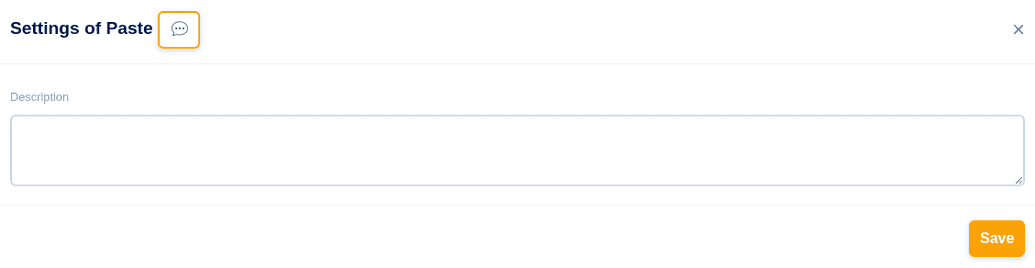
In the description box, you can give a short description for your reference
Click the Save button to save this event


Find Region - Find a region within the Desktop

- Choose the Variable type to be either Variable/Value
-
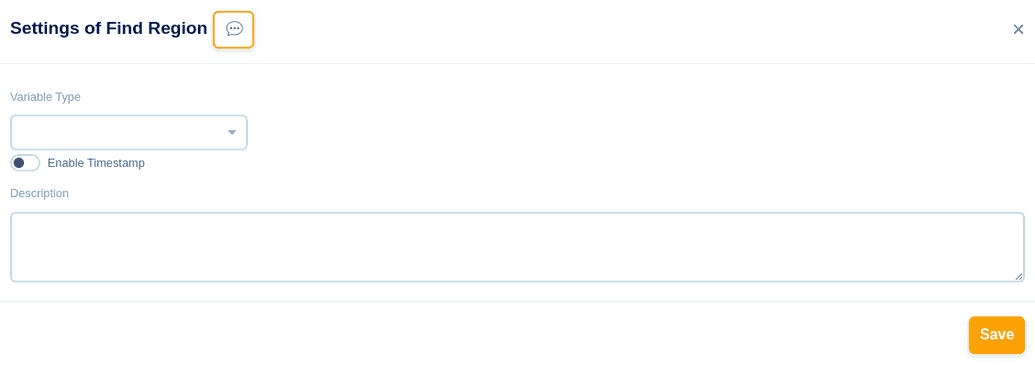
- For Variable, key in the Variable Name
- For Value, Choose the Data type, either String/Number/Keys, key in the corresponding Value accordingly
- If the Time Stamp button is enabled, the region found will be saved with the corresponding Date and Time
- In the description box, you can give a short description for your reference
- Click the Save button to save this event

Wait Until - Checks for the image until the time specified

- Choose File type either Internal/External
-
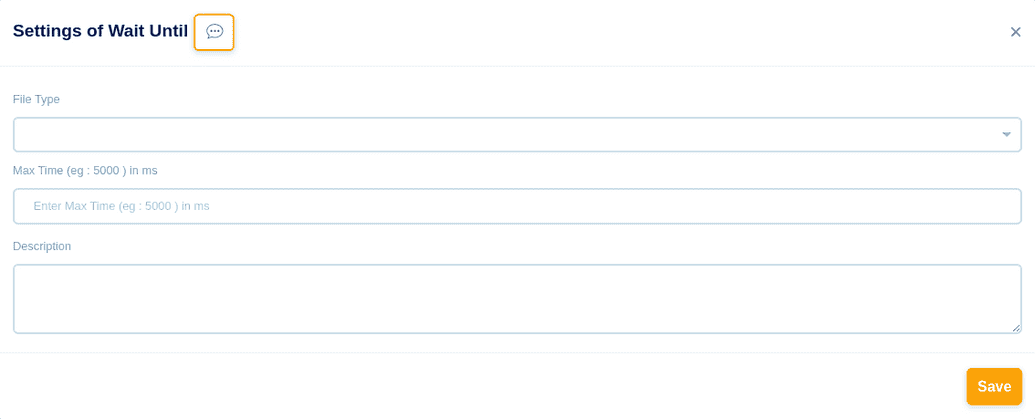
- For Internal, Choose Upload File from your local system
- In the Max Time section, key in the maximum wait time in milliseconds
- In the description box, you can give a short description for your reference
- Click the Save button to save this event
- For External, Choose Method either - SFTP/FTP and mention the IP Address & Port number of the external system from where you are going to access the file
- Mention the Remote Path of the file & File Name
- Choose Authentication Type from any of these - No Authentication/Username and Password/Username and Key
- For Username and Password, key in the Username and Password
- For Username and Key, key in the Username and Password and Private Key
- In the Max Time section, key in the maximum wait time in milliseconds
- In the description box, you can give a short description for your reference
- Click the Save button to save this event
