OCR
EasyOCR

- Choose Path Type either From URL/From IP or Local
-
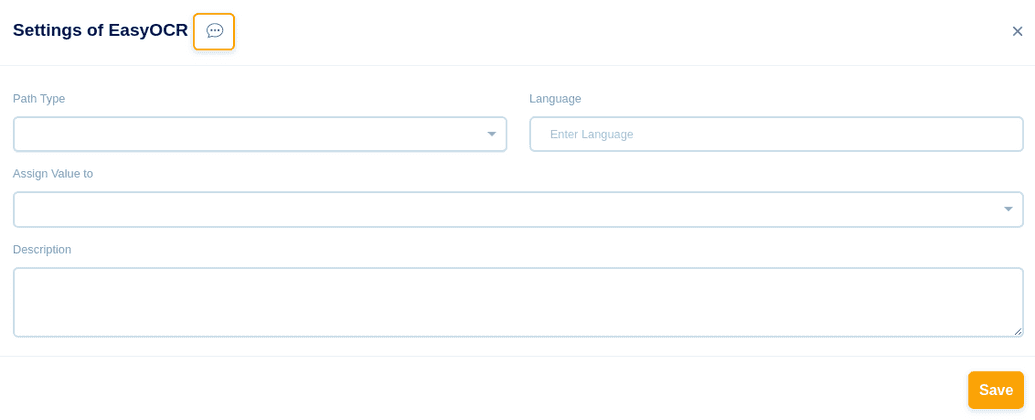
- If From URL is chosen, then choose URL type either Value/Variable
- For URL type Variable, key in the Variable Name
- For URL type Value, key in the URL in Value box
- Key in the URL in Assign Value To
- Enter the language of the source file (Image) in Language box, meaning, from which language the text has to be copied
- Assign a value at Assign Value To
- In the description box, you can give a short description for your reference
- Click the Save button to save this event
- If From IP or Local is chosen, then Choose File type either - Internal/External
- For Internal, Choose Upload File from your local system.
- Key in the URL in Assign Value To
- Enter the language of the source file (Image) in Language box, meaning, from which language the text has to be copied
- In the description box, you can give a short description for your reference
- Click the Save button to save this event
- For External, Choose Method either - SFTP/FTP and mention the IP Address & Port number of the external system from where you are going to access the file
- Mention the Remote Path of the file & File Name
- Choose Authentication Type from any of these - No Authentication/Username and Password/Username and Key
- For Username and Password, key in the Username and Password
- For Username and Key, key in the Username and Password and Private Key
- Key in the URL in Assign Value To
- Enter the language of the source file (Image) in Language box, meaning, from which language the text has to be copied
- In the description box, you can give a short description for your reference
- Click the Save button to save this event

Tesseract OCR

- Choose Path Type either From URL/From IP or Local
-
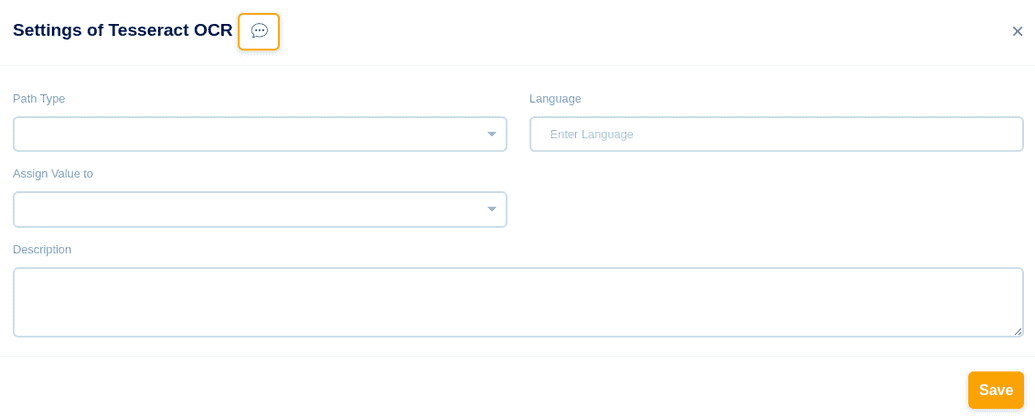
- If From URL is chosen, then choose URL type either Value/Variable
- For URL type Variable, key in the Variable Name
- For URL type Value, key in the URL in Value box
- Key in the URL in Assign Value To
- Enter the language of the source file (Image) in Language box, meaning, from which language the text has to be copied
- Assign a value at Assign Value To
- In the description box, you can give a short description for your reference
- Click the Save button to save this event
- If From IP or Local is chosen, then Choose File type either - Internal/External
- For Internal, Choose Upload File from your local system.
- Key in the URL in Assign Value To
- Enter the language of the source file (Image) in Language box, meaning, from which language the text has to be copied
- In the description box, you can give a short description for your reference
- Click the Save button to save this event
- For External, Choose Method either - SFTP/FTP and mention the IP Address & Port number of the external system from where you are going to access the file
- Mention the Remote Path of the file & File Name
- Choose Authentication Type from any of these - No Authentication/Username and Password/Username and Key
- For Username and Password, key in the Username and Password
- For Username and Key, key in the Username and Password and Private Key
- Key in the URL in Assign Value To
- Enter the language of the source file (Image) in Language box, meaning, from which language the text has to be copied
- In the description box, you can give a short description for your reference
- Click the Save button to save this event
