Browser Action Events
Click - Performs a click within the browser


- Choose from any of these selector- CSS Selector/X Path/Id and key in the corresponding Path/Id
- In the Timeout section, specify a time in milliseconds. If the Click is not performed within the time specified, bot will be stopped
- In the description box, you can give a short description for your reference
- Click the Save button to save this event
Set Select Box - Select the values from the Select box

- Choose from any of these selector - CSS Selector/X Path/Id and key in the corresponding Path/Id
-
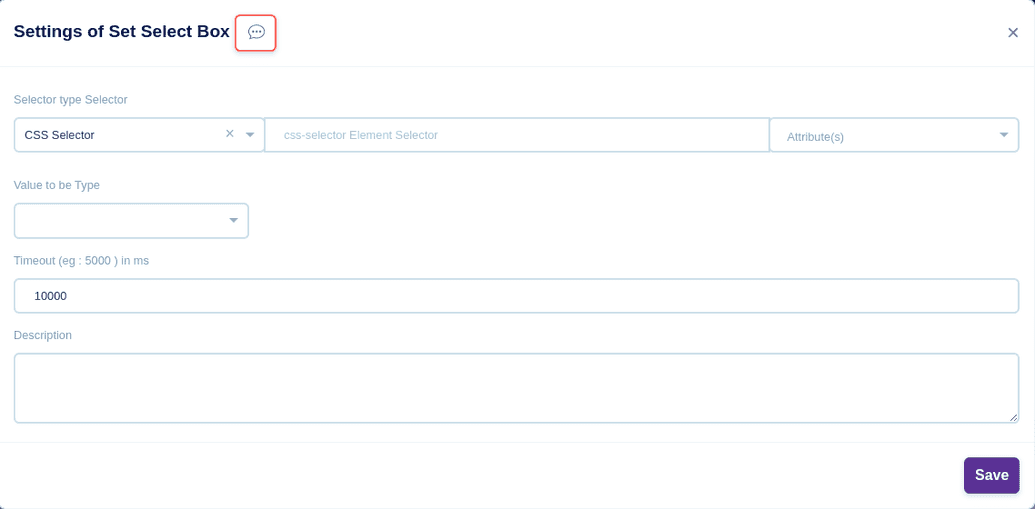
- Choose the attribute "innerHTML"
- Choose the Variable Type to be either Variable or Value
- For Variable, give the Variable Name (OR) For Value, Choose either String or Number
- For String, declare the Value (OR) For Number, declare the Value
- In the Timeout section, specify a time in milliseconds. If the Set Select Box event is not performed within the time specified, bot will be stopped
- In the description box, you can give a short description for your reference
- Click the Save button to save this event

Type - Types within the browser

- Choose from any of these selector - CSS Selector/X Path/Id and key in the corresponding Path/Id
-
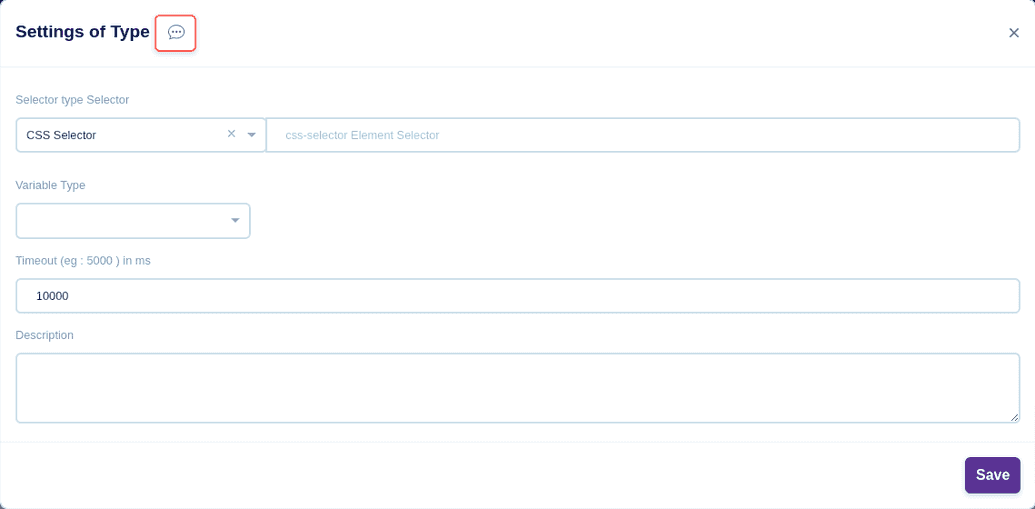
- Choose the Variable Type to be either Variable or Value
- For Variable, give the Variable Name (OR) For Value, Choose either String or Number
- For String, declare the Value (OR) For Number, declare the Value
- In the Timeout section, specify a time in milliseconds. If the Type event is not performed within the time specified, bot will be stopped
- In the description box, you can give a short description for your reference
- Click the Save button to save this event

Screenshot - Takes a Screenshot within the browser
 Choose from any of these type, Screenshot of - Full Page/Element/Visible Area/Custom

Full Page
- Choose File type either - Internal/External
- For Internal, Choose Upload File from your local system. Choose File type either - PNG/JPEG
- In the description box, you can give a short description for your reference
- Click the Save button to save this event
- For External, Choose Method either - SFTP/FTP and mention the IP Address & Port number of the external system from where you are going to access the file
- Mention the Remote Path of the file & File Name
- Choose Authentication Type from any of these - No Authentication/Username and Password/Username and Key
- For Username and Password, key in the Username and Password
- For Username and Key, key in the Username and Password and Private Key
- Choose File type either - PNG/JPEG
- In the description box, you can give a short description for your reference
- Click the Save button to save this event
Element
- Choose File type either - Internal/External
- For Internal, Choose Upload File from your local system. Choose File type either - PNG/JPEG
- In the description box, you can give a short description for your reference
- Click the Save button to save this event
- For External, Choose Method either - SFTP/FTP and mention the IP Address & Port number of the external system from where you are going to access the file
- Mention the Remote Path of the file & File Name
- Choose Authentication Type from any of these - No Authentication/Username and Password/Username and Key
- For Username and Password, key in the Username and Password
- For Username and Key, key in the Username and Password and Private Key
- Choose File type either - PNG/JPEG
- In the description box, you can give a short description for your reference
- Click the Save button to save this event
Visible Area
- Choose File type either - Internal/External
- For Internal, Choose Upload File from your local system. Choose File type either - PNG/JPEG
- In the description box, you can give a short description for your reference
- Click the Save button to save this event
- For External, Choose Method either - SFTP/FTP and mention the IP Address & Port number of the external system from where you are going to access the file
- Mention the Remote Path of the file & File Name
- Choose Authentication Type from any of these - No Authentication/Username and Password/Username and Key
- For Username and Password, key in the Username and Password
- For Username and Key, key in the Username and Password and Private Key
- Choose File type either - PNG/JPEG
- In the description box, you can give a short description for your reference
- Click the Save button to save this event
Custom
- Key in the values for Top/Left/Height/Width
- Choose File type either - Internal/External
- For Internal, Choose Upload File from your local system. Choose File type either - PNG/JPEG
- In the description box, you can give a short description for your reference
- Click the Save button to save this event
- For External, Choose Method either - SFTP/FTP and mention the IP Address & Port number of the external system from where you are going to access the file
- Mention the Remote Path of the file & File Name
- Choose Authentication Type from any of these - No Authentication/Username and Password/Username and Key
- For Username and Password, key in the Username and Password
- For Username and Key, key in the Username and Password and Private Key
- Choose the File type either - PNG/JPEG
- In the description box, you can give a short description for your reference
- Click the Save button to save this event
Get Attribute Value

- Choose from any of these selector - CSS Selector/X Path/Id and key in the corresponding Path/Id
-
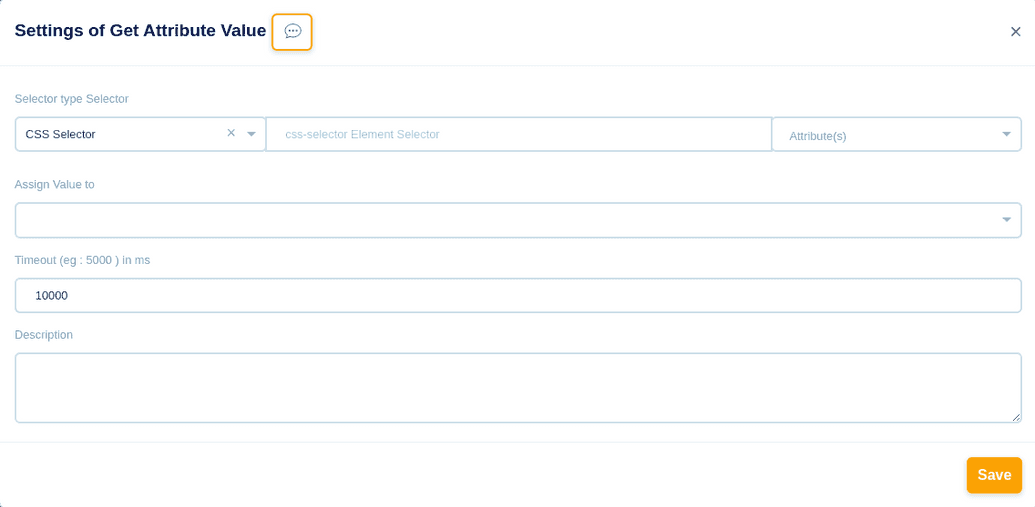
- In Attribute(s), choose innerHTML
- innerText
- TextContent
- Length
- isVisible
- isNotVisible
- isPresent
- isNotPresent
- Class
- id
- name
- href
- type
- value
- defaultValue
- target
- datasrc
- lang
- src
- alttitle
- width
- height.
- In Assign Value To, key in the Value
- In the Timeout section, specify a time in milliseconds. If the Get Attribute Value event is not performed within the time specified, bot will be stopped
- In the description box, you can give a short description for your reference
- Click the Save button to save this event

Set Attribute Value

- Choose from any of these selector - CSS Selector/X Path/Id and key in the corresponding Path/Id
-
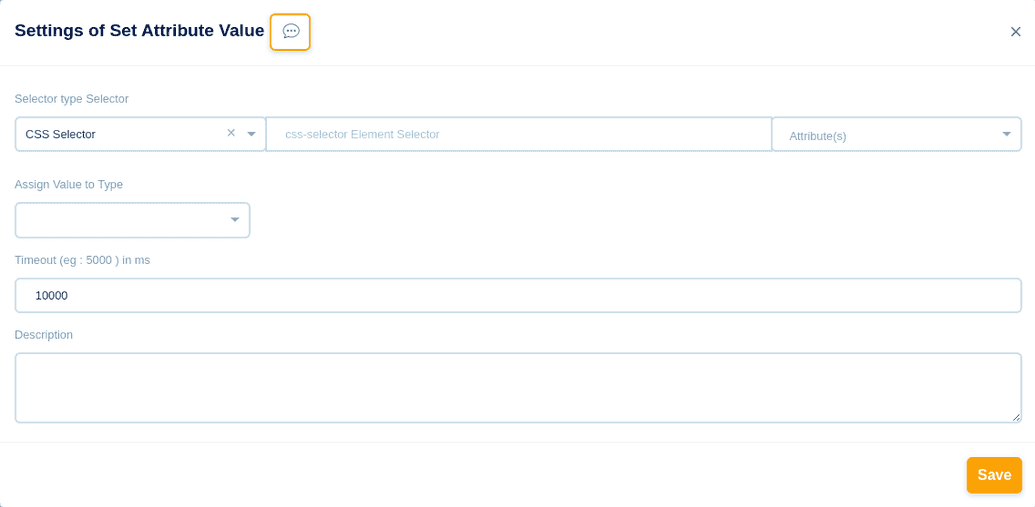
- In Attribute(s), choose innerHTML likewise innerText,TextContent,Length,isVisible,isNotVisible,isPresent,isNotPresent,Class,id,name,href,type,value,defaultValue,target,datasrc,lang,src,alttitle,width,height.
- In Assign Value To, Choose either Variable/Value
- For Variable, key in the Variable Name
- For Value, Choose the Data type, either String/Number/Keys, key in the corresponding Value accordingly
- In the Timeout section, specify a time in milliseconds. If the Set Attribute Value event is not performed within the time specified, bot will be stopped
- In the description box, you can give a short description for your reference
- Click the Save button to save this event

Get Text

- Choose from any of these selector - CSS Selector/X Path/Id and key in the corresponding Path/Id
-
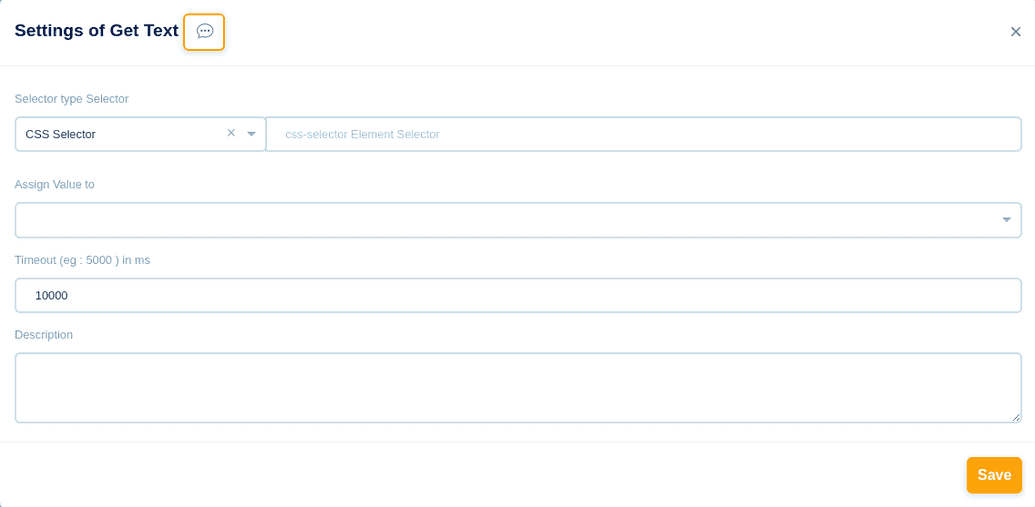
- In Assign Value To, key in the Value
- In the Timeout section, specify a time in milliseconds. If the Get Text event is not performed within the time specified, bot will be stopped
- In the description box, you can give a short description for your reference
- Click the Save button to save this event

Trigger Event

- Choose from any of these selector - CSS Selector/X Path/Id and key in the corresponding Path/Id
-
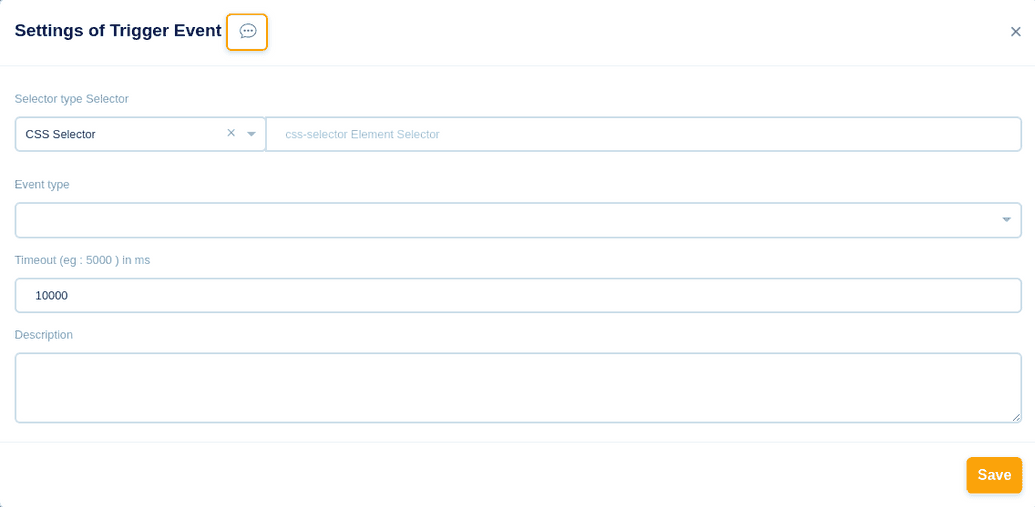
- In Event type, choose either Click/Double Click/Blur/Change
- In the Timeout section, specify a time in milliseconds. If the Trigger event is not performed within the time specified, bot will be stopped
- In the description box, you can give a short description for your reference
- Click the Save button to save this event

Execute Javascript

- Enter Javascript Code, in the Code Box
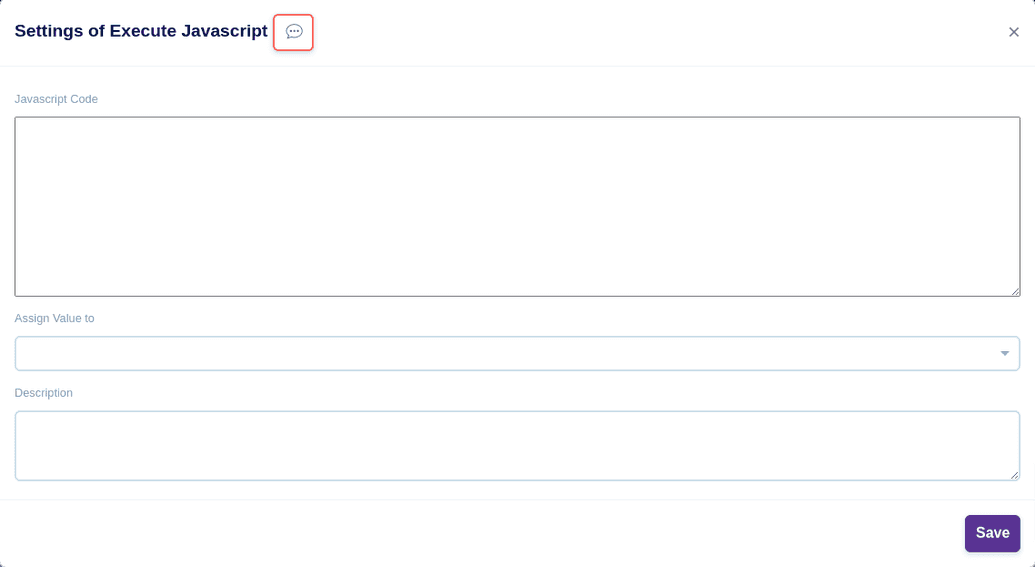
- In Assign Value To, key in the Value
- In the description box, you can give a short description for your reference
- Click the Save button to save this event

Execute Phython


- Enter Phython Code, in the Code Box
- In Assign Value To, key in the Value
- In the description box, you can give a short description for your reference
- Click the Save button to save this event